The best screen recording tools for Mac in 2026
From quick bug clips to polished product demos — a field guide to the Mac recorders worth knowing, and how they differ.

Recording your screen on a Mac spans a wide range now: instant GIF-makers, demo studios with automatic zoom, full editors, and the recorder already built into macOS. They optimise for different things — speed, polish, sharing, or keeping everything local — so the "best" one really depends on the clip you're trying to make. Here's how the main options compare.
What to look for
A quick bug repro needs none of the auto-zoom and motion smoothing that a public product demo lives or dies by. Decide which job you're optimising for.
Some tools upload to a cloud and hand you a share link; others export a local file you file away yourself. That affects privacy, and whether you can find the clip again in a month.
Trim-only is fine for raw captures; demos want a timeline with zoom, cursor smoothing and speed ramps.
One-time, subscription, or free — and whether the feature you actually need sits behind the paywall.
The options
Screen Studio ↗
The polish benchmark: automatic zoom-to-cursor, motion-blurred movement and clean exports. Paid, Mac-only, focused entirely on producing beautiful demo videos.
Loom ↗
The team-sharing default — record, get a link, with viewer analytics and comments. Cloud-hosted and subscription-based past the free tier; great for async updates.
CleanShot X ↗
A fast all-rounder for captures, GIFs and annotated screenshots. Recording is solid; editing is light. One-time purchase (or Setapp).
QuickTime Player ↗
Free and pre-installed. Perfect for a no-frills capture you'll use once — no zoom, editing or library.
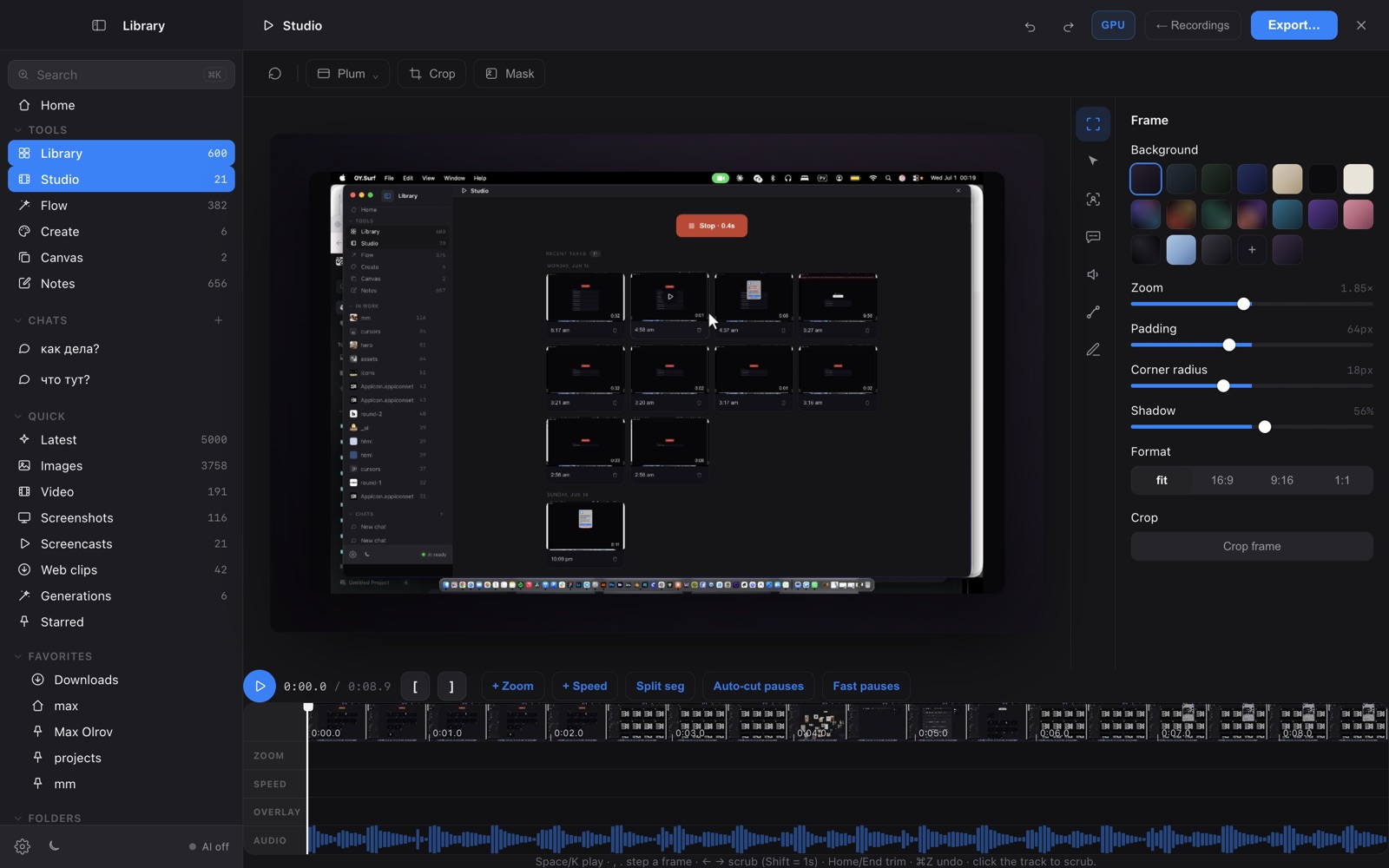
OY.Surf (Studio) ↗
The all-in-one, on-device option: recording with a zoom timeline that files each take into the same local library you browse images and references in. Free; recording and editing run on your Mac.
How they compare
| Screen Studio | Loom | CleanShot X | QuickTime | OY.Surf | |
|---|---|---|---|---|---|
| Screen recording | ✓ | ✓ | ✓ | ✓ | ✓ |
| Auto zoom + motion polish | ✓ | ~ | — | — | ~ |
| Editing timeline | ✓ | ~ | ~ | — | ✓ |
| Stays on-device (no upload) | ✓ | — | ✓ | ✓ | ✓ |
| Recordings kept in a searchable library | — | ~ | — | — | ✓ |
| Also does images / notes / dictation | — | — | — | — | ✓ |
| Price | Paid | Freemium | Paid | Free | Free |

The honest take
If your whole job is the most polished demo possible, Screen Studio sets the bar; for async team sharing, Loom; for fast GIFs, CleanShot X; for a throwaway capture, QuickTime is already there. OY.Surf is the one where recording isn't a standalone app — it's one tool inside a local library that also holds your images and references, so the clip is searchable next to everything else.
FAQ
- What's the best free screen recorder for Mac?
- QuickTime Player for a one-off raw capture; OY.Surf's Studio if you also want a zoom timeline and the recording kept in a searchable library — both free.
- Which screen recorders keep the video on-device?
- QuickTime, CleanShot X and OY.Surf record locally. Cloud tools like Loom store clips on their servers by design.
- Which has the best automatic zoom?
- Screen Studio's auto-zoom and motion smoothing are the most refined today.
OY.Surf is one of the options above — the local-first, on-device one that bundles browsing, generation, editing, recording and dictation into a single free macOS app. It won't replace a specialist for that specialist's one job; it's useful when you'd rather not run five separate tools.